MDWebView
Kiosk app for Android

One web page, full screen, and nothing else

MDWebView opens the address you set without an address bar or browser controls, and locks the device so nobody can leave the app. At home it turns a tablet into a wall panel. At work it turns a phone or a Zebra scanner into a terminal for SAP or any other web system.

Android 8.0 or later. English, Czech, Slovak, German and Polish.

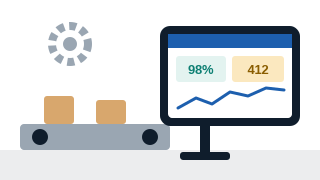
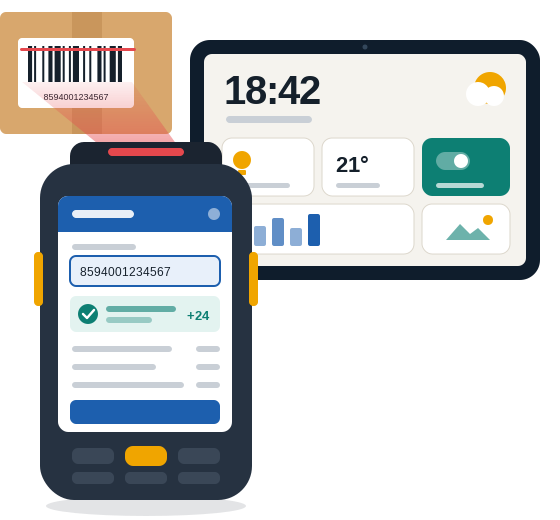
A rugged scanner running a goods-receipt web app reads a barcode on a carton, with a smart-home wall tablet behind it

Two editions: home and business

The Google Play version is free with ads and licensed for private use only. Companies get a separate app, MDWebView Enterprise, under a license agreement. It has no ads and adds what a home user does not need: MDM configuration, hardware scanners and device-owner kiosk mode.

For home

MDWebView

Free with ads. A one-time in-app purchase turns them off.

  • Full screen without system bars, lock to the app and a settings PIN
  • Screensaver with a clock, return to the start page when idle, periodic reload
  • Home servers with self-signed certificates, such as a NAS, Home Assistant or a router
  • QR and barcode scanning with the camera, NFC tag reading
  • File downloads, photo uploads, printing and full-screen video

The license allows private, non-commercial use only.
For business

MDWebView Enterprise

No ads, licensed per device. A 30-day trial is available on request.

  • Everything in the home edition, without ads or ad libraries
  • Configuration through MDM: Intune, Workspace ONE, SOTI, Knox or Google
  • Hardware scanners from Zebra, Honeywell, Datalogic, Newland and Urovo
  • Device-owner kiosk with a locked status bar and start on boot
  • Works in warehouses without internet; Wi-Fi to your server is enough
  • JavaScript API for your web app: scanning, ZPL label printing, sound and vibration
FeatureHomeEnterprise
Full screen and lock to the app✓✓
Settings PIN and hidden admin gesture✓✓
Custom certificates and internal servers✓✓
Camera scanning and NFC✓✓
Setup from a QR code or a file✓✓
Hardware scanners (Zebra, Honeywell…)–✓
MDM configuration–✓
Device owner and start on boot–✓
AdsAt start and at most every 3 minutes; a purchase removes themNone
Who may use itPrivate use onlyCompanies and organisations under license

What people use MDWebView for

Some of these are home setups, others are business ones. Any commercial use needs the Enterprise edition, even a single tablet in a café.

For business

Warehouse and shipping

The picker's Zebra scanner shows only the SAP goods receipt. A scanned code goes into the field and the app presses Enter. If Wi-Fi drops for a moment, the page reloads by itself as soon as the network is back.

For business

Production line terminal

A screen at the line shows work orders or an MES dashboard. The display stays on, the page reloads on a schedule, and the app restarts itself after a crash.

For business

Reception and self-service

A tablet at the front desk with a visitor log or a booking form. After a few idle minutes it returns to the start page and clears the previous visitor's session.

For business

Shop, café, restaurant

A menu, catalogue or ordering screen on a tablet at the table or the till. Customers cannot get into the settings or other apps.

For home

Smart home panel

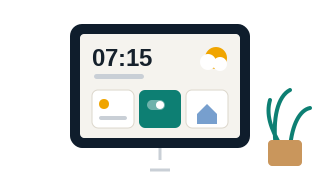
An old tablet on the wall running Home Assistant. The display can stay on, shows a clock at night, and a home server with its own certificate loads without warnings.

For home

A tablet for kids

A tablet locked to one site, such as a learning portal or a cartoon page. The child cannot leave the app, and the settings need your PIN.

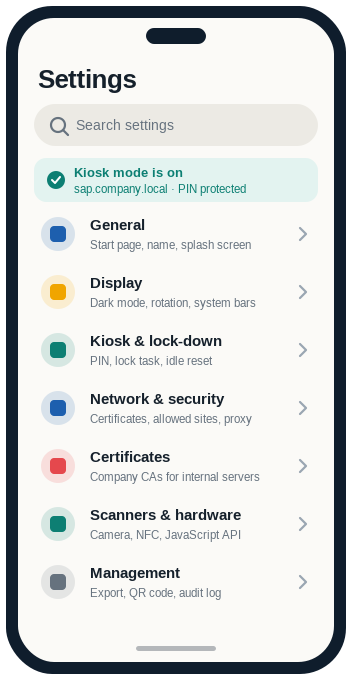
MDWebView settings screen with categories and search

Settings you can find your way around

On first start a wizard asks for the address and checks right away whether the server answers. Settings are grouped into categories and have a search box, so you can find an option by name. On a tablet they show in two columns.

When a page does not load, the diagnostics screen shows where it fails: DNS, the connection, the certificate or the server response. You can trust an untrusted certificate straight from there.

  • Export a finished setup to a file or a QR code and load it on the next device
  • Exports can be encrypted with a passphrase
  • Every settings change and every admin login goes into an audit log
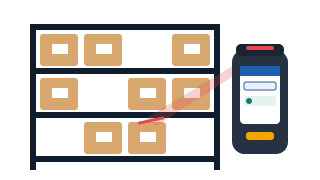
Diagram: a cloud MDM sends settings only now and then; scanners in the warehouse work over Wi-Fi with a local server and no internet

Warehouses without internet

The app does not need the internet. The device only has to reach the server with your application over Wi-Fi. MDM settings stay stored on the device, and hardware scanners work fully offline.

How this works in the Enterprise edition

Internal systems and company certificates

Company servers often use a certificate from an in-house CA, an expired certificate, or plain HTTP. A browser answers with a warning a warehouse worker cannot click through. MDWebView has four certificate modes:

StrictLike a normal browser, plus the certificates you add
Trusted hosts onlyThe exception applies to listed hosts and IP ranges
Ask and rememberAn admin confirms the certificate fingerprint once
Ignore errorsFor test environments where certificates do not matter

It also handles username and password sign-in (Basic or NTLM), client certificates and proxies. With SAP it detects an expired session and sends the user back to the login page instead of leaving them on an error.

Getting started

For home

At home

  1. Install the appFrom Google Play, free.
  2. Enter the addressThe wizard tries it right away and tells you whether the page loads.
  3. Lock itIn Kiosk & lock-down, turn on lock task and set a PIN.
Get it on Google Play
For business

At work

  1. Write to usHow many devices, which models, and which system they should connect to. If you like, we send a 30-day trial first.
  2. Get the appIn your organisation's managed Google Play, or as an APK for your MDM.
  3. Push the settingsThrough MDM, a QR code or a file. Nobody has to type anything on each device.
Ask for a quote

Frequently asked questions

Is the app free?

The Google Play version is. It shows a full-screen ad at start and then at most once every three minutes, always when you move to another page. A one-time purchase in the settings removes the ads for good, and it comes back after a reinstall.

Can I use the free version at work?

No. The Google Play version is licensed for private use only. Companies, schools and other organisations need MDWebView Enterprise, which has no ads and comes with tools for rolling it out to many devices.

How do I get out of a locked app?

Tap the top-right corner five times quickly and enter the PIN. You set the gesture and the PIN in Kiosk & lock-down. In the Enterprise edition an admin can also set or change the PIN through MDM.

Which barcode scanners work?

A scanner set up as a keyboard works in both editions, because it simply types the code into the field. Enterprise also receives codes directly from Zebra (it creates its own DataWedge profile), Honeywell, Datalogic, Newland and Urovo scanners. Both editions can scan with the camera.

Will our system run in it?

MDWebView uses the system WebView, which is built on Chromium. Whatever works in Chrome on Android works here too, whether it is SAP Fiori, Odoo or your own app.

Does it work without internet?

Yes, as long as the device can reach the server running your app, for example over company Wi-Fi. Internet is needed for installation and, in the home edition, for ads.

Which Android version do I need?

Android 8.0 or later. It runs on phones, tablets and rugged terminals.

Does the app collect my data?

Settings, passwords and certificates stay on the device; nothing is sent to our servers. The home edition shows Google AdMob ads, and Google uses the advertising ID for them; in the EU only after you consent. The Enterprise edition does not contain ad libraries at all.

See the privacy policy for details.

Rolling out tablets or scanners at work?

Tell us how many devices and which system you use. We will reply with a quote and a rollout plan.